Cursor guide: setup, rules and a testable first workflow
Cursor is useful when you want an AI coding agent close to your editor, project files and terminal. Start with a small change you can verify before asking it to reshape an application. This guide walks through setup, project rules, a reproducible debugging exercise and the cost decisions that matter when choosing a plan.
Checked September 21, 2026. Product behavior and pricing below come from linked official documentation. We ran the downloadable exercise locally with Node.js v24.11.1: the starter passed 2 of 9 cases; the reviewed reference passed 9 of 9. These are exercise checks, not a hands-on Cursor benchmark or a claim that an editor produced the reference.
Install the right build and open a small project
Get Cursor from the official download page. It lists macOS builds for Apple Silicon and Intel, Windows x64 and ARM64 installers, and Linux .deb, RPM and AppImage packages. Pick your operating system and CPU architecture; use the current vendor instructions for compatibility instead of relying on an old installer size or OS minimum.
Import your familiar editor settings if the onboarding offers it, then open the unzipped exercise folder below. Keep your first session small enough that you can inspect every file. You do not need to connect a production repository, install an extension collection or grant blanket disk access to understand this workflow. An existing project should have a clean checkpoint before an agent changes it.
Choose the workflow before choosing a model
Use Tab for suggestions while you type. Use Agent for changes that require reading and editing files, then running checks. For an unfamiliar or multi-file task, choose Plan mode first. Cursor's Plan documentation describes a reviewable plan before implementation, with the mode picker or Shift+Tab switching modes. Review the proposed scope, edit the plan, then build when it matches your intent.
Composer also names a Cursor model; older tutorials use it for an editing interface. Avoid assuming that an old “Open Composer” screenshot describes the controls in your installed release. The relevant distinction is what the session is allowed to do: investigate, propose changes or implement them. Check the current mode and tool permissions before submitting a prompt.
For our exercise, a good first prompt is:
Read AGENTS.md, cases.mjs and slugify.test.mjs.
Explain why the current implementation fails.
Propose a minimal change to starter.mjs; do not edit yet.
Do not inspect reference.mjs or change the tests.
Give the agent a concrete project contract
Cursor supports root AGENTS.md instructions and project rules in .cursor/rules/*.mdc. Use AGENTS.md for a simple shared contract. Use an MDC rule when you need activation metadata or file-specific scope. A plain .md file inside .cursor/rules is not a recognized project rule. The rules documentation explains automatic, file-scoped, agent-selected and manual application.
For this small folder, the supplied AGENTS.md already defines the contract. If you prefer a Cursor-specific rule, save this as .cursor/rules/exercise.mdc:
---
description: Keep the slug exercise small and verifiable
alwaysApply: true
---
Change only starter.mjs. Keep every test and expected output.
Add no dependencies. Use no network services.
Run node --test slugify.test.mjs before and after editing.
Report the actual counts and review the complete diff.
A rule guides the agent; it does not prove compliance. The diff and test output are the evidence. Avoid piling on unrelated architecture rules that make a one-function repair harder to review.
Try the same nine-case exercise yourself
Download the exercise ZIP or run the browser demonstration. The archive contains the incomplete starter, shared cases, Node tests, instructions and a reference solution. Tests use Node's built-in runner, with no npm install, account or API key required. AI assistance inside Cursor may consume your account allowance.
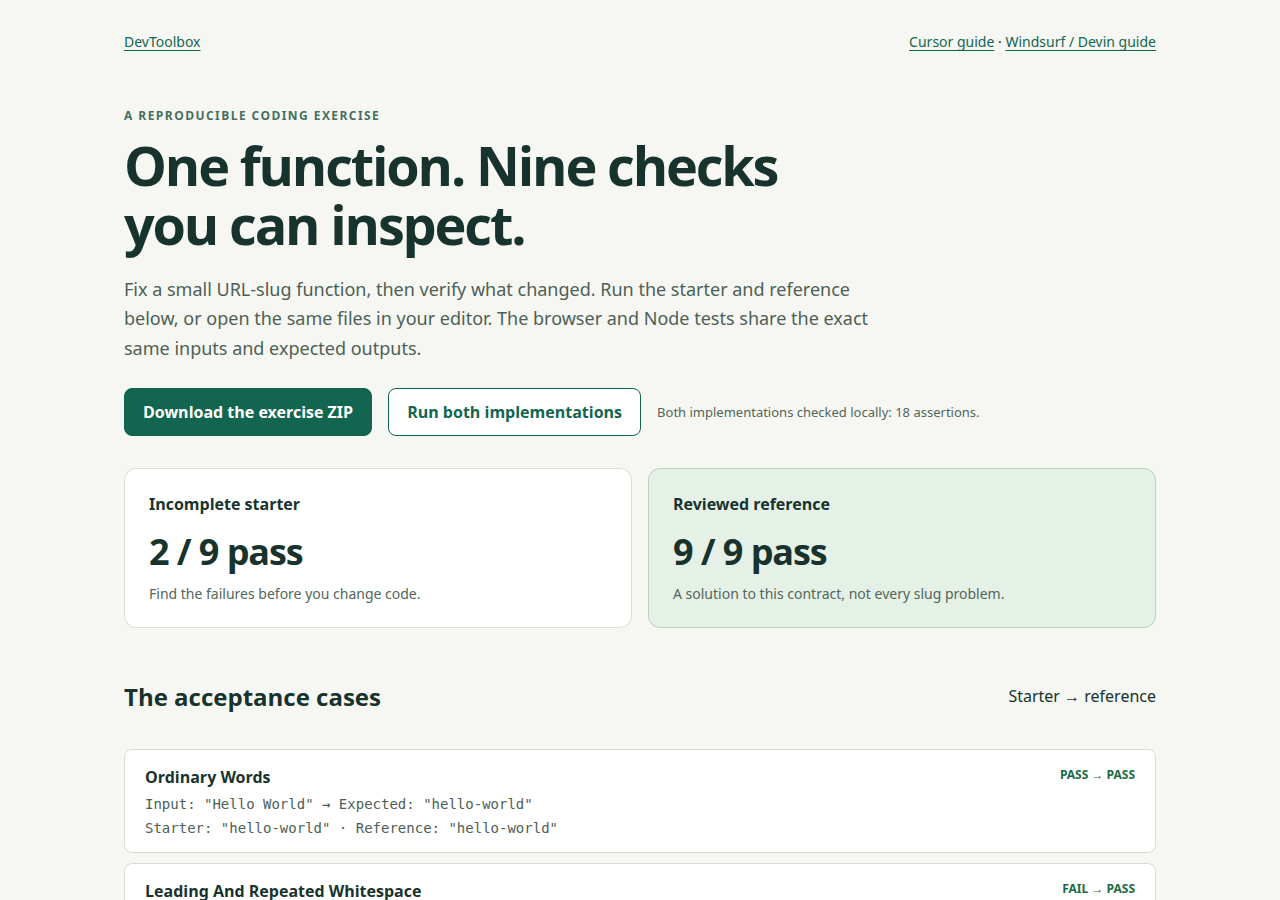
The exercise demonstration runs our supplied JavaScript. It is not a screenshot of Cursor or a measured comparison of editor performance.
Unzip the folder, enter it in a terminal with Node.js 22 or later, and run:
node --test slugify.test.mjs
The intentional baseline is 2 pass, 7 fail. The contract is lowercase ASCII slugs: remove Latin combining accents, replace runs of separators with one hyphen, and remove edge hyphens. Hello, World! should become hello-world; Crème Brûlée should become creme-brulee. Empty input and non-Latin-only input should produce an empty string. The remaining cases cover ordinary words, extra whitespace, repeated hyphens, tabs/newlines, and numbers/underscores.
After reviewing the plan, ask Agent to implement:
Implement the agreed fix in starter.mjs only.
Run node --test slugify.test.mjs.
Do not weaken tests to make them pass.
Show the diff, passing/failing counts and remaining limitations.
If the agent changes tests, reject that change and restore the supplied expectations. If it reports success without running the command, run it yourself. A plausible explanation does not substitute for the actual results.
Review the result and compare with the reference
For a reproducible diff, initialize a local Git repository and commit the untouched exercise before editing; the included README has exact commands. After the change, run:
git diff --check
git diff -- starter.mjs
Look for changes limited to the contract, no new dependencies and no deleted cases. Then preserve your attempt and check the supplied reference:
cp starter.mjs my-attempt.mjs
cp reference.mjs starter.mjs
node --test slugify.test.mjs
Our starter log and reference log record the local fail-first and passing runs. Nine passing examples are useful evidence, but they do not prove every input works. This function does not transliterate all writing systems, enforce uniqueness or decide whether an empty slug is acceptable to your application. Those are separate requirements to define before production use.
What Cursor costs now
The current pricing page lists these individual monthly prices before applicable taxes. Annual billing is a different commitment; compare like with like.
| Plan | Monthly price | Relevant limit |
|---|---|---|
| Hobby | Free | Limited Agent requests |
| Pro | $20 | Extended Agent limits |
| Pro+ | $60 | 3× Pro Agent limits |
| Ultra | $200 | 20× Pro Agent limits |
The models and pricing documentation describes separate Cursor Models and Other Models usage pools. Model choice changes consumption; paid individual plans include unlimited Tab. Additional on-demand usage is separately billed. Do not budget from an old claim that Auto gives unlimited agent work, or treat a subscription as a fixed number of completed features. Check your dashboard's allowance and spending settings before a large run.
Compare the decision you actually need to make
Use our IDE-assistant comparison to inspect subscriptions and source dates. The hosted-model comparison answers a different question: listed API token costs. An editor subscription, tool activity and an API token estimate are not interchangeable bills.
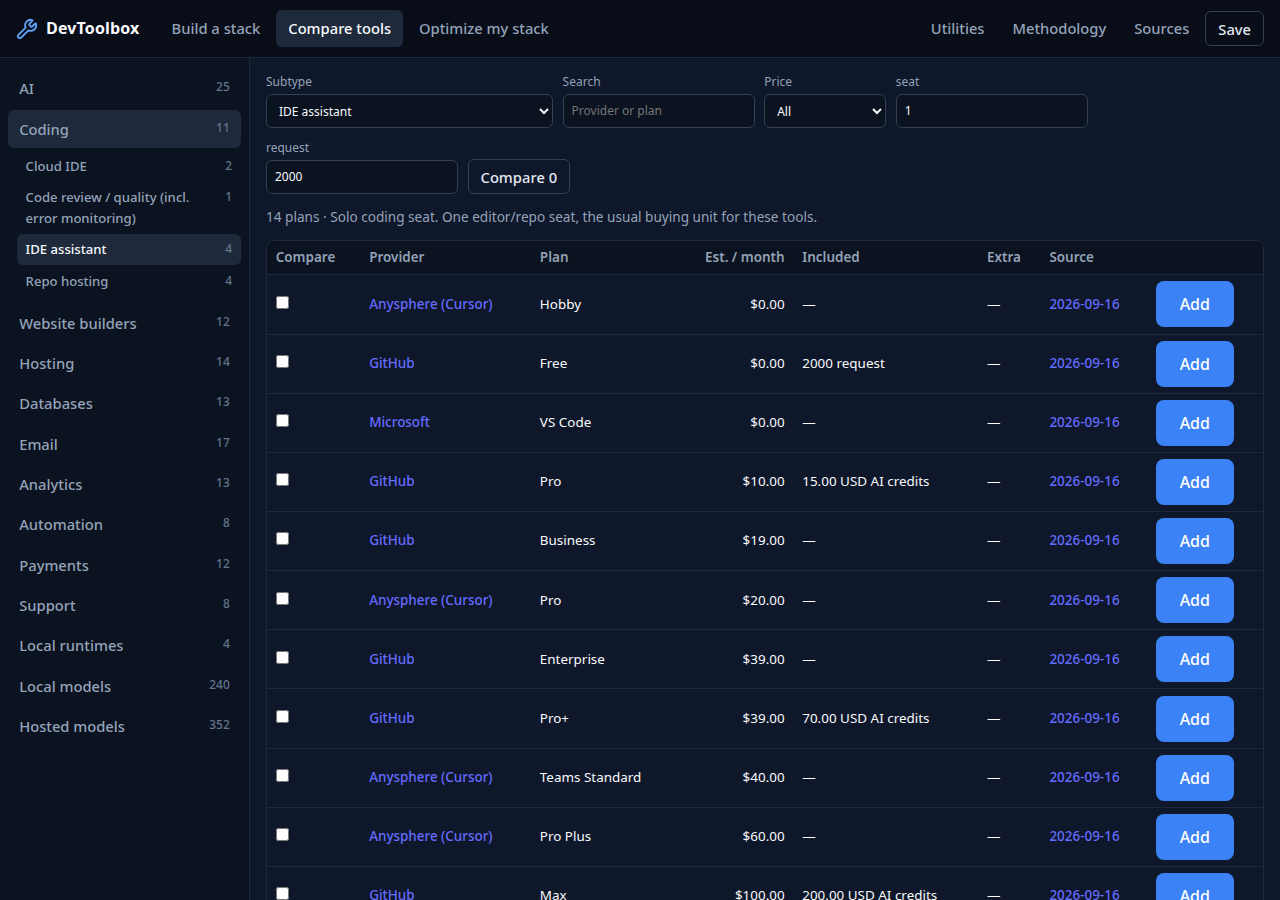
For an alternative workflow, read the Windsurf / Devin Desktop guide and reuse the same exercise. Record the installed version, selected model, retries, review effort and account usage if you test both. Choose based on your project and observed results; this guide supplies a controlled starting point, not a claimed winner.